
The Check & Log Email plugin is a powerful tool designed to simplify email management in WordPress. Whether you need to verify that your WordPress site is sending emails correctly, log every outgoing email for auditing purposes, or troubleshoot delivery issues, this plugin provides a reliable and user-friendly solution.
With features like SMTP configuration, detailed email logging, log retention control, forwarding, and debugging tools, administrators gain full visibility and control over how emails are sent and handled.

One of its standout capabilities is the Multisite Configure feature, which allows network administrators to define and manage global email settings across all sites in a WordPress Multisite network. Instead of configuring each subsite individually, you can apply consistent settings network-wide—saving time, ensuring accuracy, and maintaining centralized control.
This makes the plugin especially valuable for businesses, developers, and agencies running multiple WordPress sites, where consistent email delivery and tracking are critical.
What is Multisite and what’s it benefits.
“Multisite Configure” is a feature of the Check & Log Email plugin that allows a network (multisite) WordPress installation to set up global settings for email logging and email‐sending behaviour across all sites in the network. Instead of configuring each subsites individually, network administrators can define settings that apply everywhere.
- Ensures consistency in how emails are logged, formatted, sent, and managed across all sites.
- Saves time: one place to configure SMTP, retention, forwarding, etc.
- Simplifies maintenance: updates to email settings become easier.
- Central auditing: easier to monitor email issues across the network.
In this document we will we step by step of multisite configuration in Check & Log Email plugin.
- Now, let’s set up Multisite on WordPress. First, install WordPress, then open the
wp-config.phpfile using any editor and add the code below.
define( ‘WP_ALLOW_MULTISITE’, true );

- Now click on tool and check “Network setup “option. Enable that option. You refer this tutorial also.
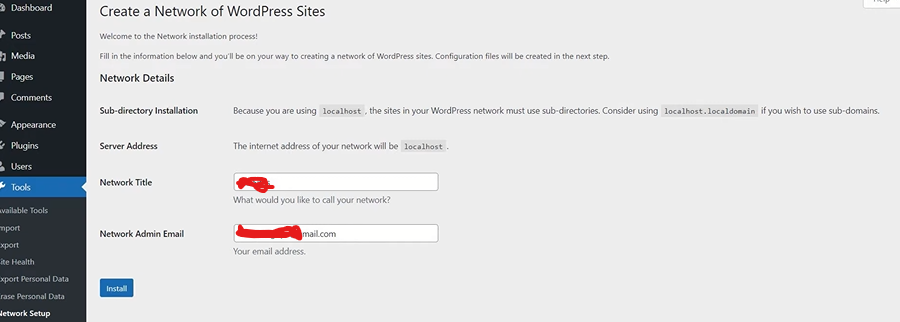
- Once setup of multisite is done .. click on Network admin and go to plugins.
- install the plugin from here https://wordpress.org/plugins/check-email/ or go to add the plugin and search for “Check & Log Email by checkmail“. Download the plugin and install it.

- Now Click on Dashboard and left side you will find “Check & Log Email ” option .

- Click on Check & Log Email option and enable ‘setting control’ option.

do the same with SMTP option.

- Now click on your sites Dashboard and check the option. Global setting will be add to all your site.


Similarly, the same settings will apply to all your sites, so you don’t need to configure them again and again for each new website. Whether it’s 1 site or 1000, the configuration will work across all.
What Global Settings Can Be Configured.
rom the plugin description, the following are among the features that can be managed globally via the multisite configuration:
| Setting | What it does / Examples |
|---|---|
| SMTP Settings | Configure which SMTP server is used network-wide (e.g. Gmail, Outlook / MS 360, custom host). |
| Log Retention Period | Define how long to keep email logs (delete old logs based on time or number of records) across all sites. |
| Forward Email | Automatically forward a copy of outgoing emails to specified addresses. |
| Default Format for Message | Set how message content is formatted (HTML, plain text, template) globally. |
| Encoding | Handle encoding of emails and phone in page content across all subsites. |
To make this feature easier to understand, let’s look at a real case scenario.
Imagine you have a WordPress Multisite network with 10 subsites, each handling different client websites. Rather than logging into each subsite to configure email settings (SMTP, formats, retention, etc.), you configure them once globally:
- You decide to use Gmail SMTP credentials for all email sending.
- Set email logs retention to 90 days.
- Automatically forward all outgoing emails to a central auditing email address( e.g : [email protected])
- Enforce HTML email format.
All subsites immediately start using those settings, making maintenance, debugging, and consistency much easier.
Best Practices
- Before changing global settings, back up existing configurations and logs.
- Communicate changes to subsite managers (so they’re not surprised by behaviors—e.g. “we’ve enforced central SMTP”).
- Monitor resource usage (database size) because logging for many subsites can generate large log tables. Use retention wisely.
- Test email sending and logging after setting global configs to ensure everything works (especially SMTP, forward, etc.).
That’s it for this tutorial , if you need any other help or having any concern, please fill the below form.
